
- Setting Up a Shadow Mode Workflow for Risk-Free Testing
- Simulating Production Data Using Shopify Flow’s 'Run Now' Feature
- Validating Conditional Logic with Internal Notification Alerts
- Step-by-Step Validation Checklist
- Stress-Testing High-Volume Triggers During Peak Traffic Events
- Common Mistakes to Avoid
- Rollback Procedures and Error Handling for Failed Automations
- How to Fix and Recover
- References
- Related Shopify and Ecommerce Growth Guides
- Authoritative References
- Frequently Asked Questions
- Related Reading
- Setting Up a Shadow Mode Workflow for Risk-Free Testing
- Simulating Production Data Using Shopify Flow’s 'Run Now' Feature
- Validating Conditional Logic with Internal Notification Alerts
- Step-by-Step Validation Checklist
- Stress-Testing High-Volume Triggers During Peak Traffic Events
- Common Mistakes to Avoid
- Rollback Procedures and Error Handling for Failed Automations
- How to Fix and Recover
- References
- Related Shopify and Ecommerce Growth Guides
- Authoritative References
Deploying untested Shopify Flow automations can break live order fulfillment and trigger incorrect customer emails. For high-volume merchants, a single logic error in a workflow can result in thousands of mismanaged orders before the issue is detected. This guide provides a technical framework for validating logic in production without risking data integrity or customer experience.
Setting Up a Shadow Mode Workflow for Risk-Free Testing
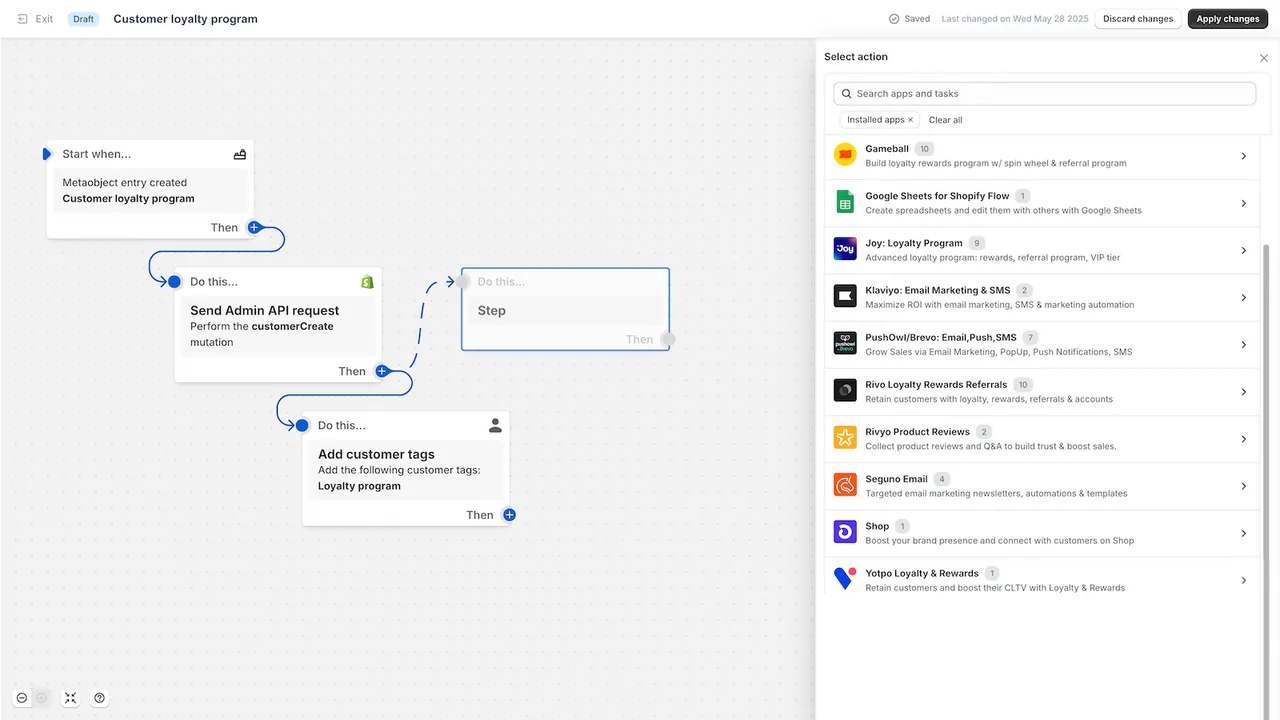
Shopify Flow testing involves verifying automation logic using Shadow Mode—cloning a workflow and replacing external actions (like emails or API calls) with internal notifications. This process allows operators to confirm that triggers and conditions execute correctly against live data without impacting customers or third-party integrations.
- Duplicate the workflow: Always create a copy of your production-ready flow before activation.
- Strip external actions: Remove "Send Marketing Email," "Cancel Order," or "Capture Payment" actions that would affect the live environment.
- Insert logging actions: Replace them with "Send Internal Email" or "Log to Google Sheets" to record what would have happened.
- Run in parallel: Keep the shadow workflow active alongside live operations to compare real-world outcomes against expected logic.
By running these flows in parallel, you can identify edge cases that your initial logic might have missed, such as unexpected customer tags or international currency formatting. This is a critical step in managing technical debt within Shopify Plus environments.
Simulating Production Data Using Shopify Flow’s 'Run Now' Feature
The "Run Now" feature allows you to backtest logic against historical data instead of waiting for new events. This is critical for validating flows that target specific customer segments or order values. This feature is particularly useful for Shopify Plus users who need to process large batches of historical data to ensure logic consistency.
- Select the Run Now button within the workflow editor.
- Filter for specific resources (e.g., orders from the last 24 hours or customers with a specific tag).
- Select up to 100 individual records to process through the flow logic.
- Review the Activity log to see exactly which conditions were met or failed for each record.
Using "Run Now" ensures that your logic holds up against the actual data structures present in your store, rather than theoretical scenarios. For enterprises scaling their automation stack, professional consulting ensures logic scales without accumulating performance bottlenecks.
Validating Conditional Logic with Internal Notification Alerts
Complex logic branches often fail due to Liquid variable syntax errors or case-sensitivity issues in tags. Internal alerts act as a real-time debugging console for your automation stack. When building for AI-driven CRO and automation, precision in these variables is non-negotiable.
Step-by-Step Validation Checklist
- Variable Verification: Include {{ order.name }} and {{ order.totalPriceSet.shopMoney.amount }} in internal email bodies to ensure data retrieval is functioning as expected.
- Tag Matching: Use "matches any" instead of "matches" to avoid failures caused by leading or trailing spaces in customer tags.
- Nested Logic Check: Create a unique internal notification for every "Otherwise" branch to identify where a flow terminates prematurely.
- Wait Step Confirmation: If using "Wait" actions, verify that the flow resumes correctly after the specified duration by checking the scheduled tasks log.
Stress-Testing High-Volume Triggers During Peak Traffic Events
Flows that work for single orders may fail during flash sales due to Shopify's execution rate limits. If your workflow depends on front-end triggers, ensure your site speed is maintained to prevent execution delays. High-frequency API calls can often lead to a development speed trap where the automation slows down the very processes it was meant to accelerate.
- Identify bottlenecks: Workflows with multiple API calls to external apps (like Klaviyo or Gorgias) are prone to timeouts during high-concurrency events.
- Check concurrency: Confirm how the flow handles 1,000+ simultaneous triggers during peak events like BFCM.
- Monitor "Recent Runs": Look for "Delayed" or "Retrying" statuses in the Flow admin, which indicate rate-limiting or server-side pressure.
Common Mistakes to Avoid
Even experienced developers can fall into traps when setting up Shopify Flow testing. Avoid these common pitfalls to maintain a clean automation environment:
- Testing with live emails: Never use a live customer email address in your "Action" steps while testing. Always use a dedicated internal testing alias.
- Hardcoding IDs: Avoid using specific Product or Collection IDs that may change between staging and production environments. Use handles or tags where possible.
- Ignoring case sensitivity: Shopify Flow treats "VIP" and "vip" as different tags; always standardize your logic to account for manual entry errors.
Rollback Procedures and Error Handling for Failed Automations
When a production flow fails, you must have a protocol to revert changes and audit the impact on your data. Systematic error handling prevents small logic gaps from becoming site-wide fulfillment issues that could lead to technical SEO and conversion killers.
How to Fix and Recover
If a workflow goes rogue, immediately use the Kill Switch by turning off the workflow in the Flow dashboard. Use the Activity tab to export a CSV of all "Failed" runs to assess the damage. Once the logic is fixed, you can identify orders that skipped a step and update them via bulk actions in the Shopify Admin. Finally, use the "Run Now" feature on the specific affected orders to re-process them through the corrected workflow.
Ensuring your automation logic is sound is just one part of a healthy Shopify ecosystem. If you are concerned about how your workflows, migrations, or technical debt are impacting your bottom line, consider a professional review.
Ready to scale your automation without the risk? Book a Shopify Plus technical audit to optimize your workflow logic, site performance, and conversion strategy.
References
- Shopify Plus Official Overview - Insights into enterprise-grade automation tools.
- Shopify Flow Documentation - Official guide on triggers, conditions, and actions.
Related Shopify and Ecommerce Growth Guides
Continue with these related guides if you want to connect the strategy to implementation, SEO risk, performance, or conversion impact.
- Shopify Plus Conversion Strategy: 7 Technical SEO Killers & CRO Fixes
- Shopify Plus Migration Guide: Managing Hidden Debt & Phased Risk
- Shopify Plus Conversion Strategy: UX, Speed & CRO Priorities
- Shopify Plus Conversion Strategy: Speed, CRO Platforms & UX Debt
- AI Content for Shopify Plus: Preventing SEO Debt & Scaling Growth
Authoritative References
Use these official resources to verify platform-specific claims and implementation details before making commercial or technical decisions.
Frequently Asked Questions
How do I test Shopify Flow without affecting live orders?
The most effective method is using 'Shadow Mode.' This involves duplicating your workflow and replacing all customer-facing or destructive actions—such as sending emails or canceling orders—with internal notifications like 'Send Internal Email' or logging to a Google Sheet. This allows you to verify that the logic triggers correctly on live data without any external impact.
Why is stress-testing Shopify Flow critical for high-volume ecommerce?
Stress-testing Shopify Flow is a critical operational safeguard for high-volume ecommerce brands because automation logic that functions correctly under low-volume conditions often encounters execution rate limits or concurrency bottlenecks during peak traffic events like Black Friday Cyber Monday (BFCM). When thousands of simultaneous triggers occur, workflows involving multiple API calls to external applications—such as Klaviyo for marketing or Gorgias for support—are particularly susceptible to timeouts and "Delayed" or "Retrying" statuses within the Shopify admin. By implementing a rigorous stress-testing framework, technical teams can identify these performance thresholds before they impact live order fulfillment or customer communication. This proactive approach prevents technical debt and ensures that complex conditional branches, Liquid variable syntax, and tag-matching logic remain robust under pressure. Ultimately, validating these workflows against production-level data volumes protects the brand's integrity, maintains site speed, and prevents the catastrophic failure of automated fulfillment pipelines during the most profitable sales periods of the year.
Can I test Shopify Flow against historical data?
Yes, Shopify Flow's 'Run Now' feature allows you to select up to 100 historical records (such as orders or customers) and process them through a specific workflow. This is ideal for backtesting logic and ensuring that conditions are met as expected before the flow is fully activated.

Ecommerce manager, Shopify & Shopify Plus consultant with 10+ years of experience helping enterprise brands scale their ecommerce operations. Certified Shopify Partner with 130+ successful store migrations.
Ecommerce manager, Shopify & Shopify Plus consultant with 10+ years of experience helping enterprise brands scale their ecommerce operations. Certified Shopify Partner with 130+ successful store migrations.

![BCI 2026: Shopify Plus Bridges Neuro-Empathy Gap [UX Insights]](img/blog/bci-shopify-plus-neuro-empathy-1.webp)
![BCI & CRO: 5 Trust Principles for Neural E-commerce [2026]](img/blog/bci-cro-ux-trust-research-2.webp)